DDI AL Ballot 2027 Complete Registration Walkthrough
Register your leave preferences for the 2027 Annual Leave Ballot — from verifying your NUH email to submitting your selections and checking the live dashboard.
The DDI AL Ballot 2027 lets you choose the weeks you would like to take annual leave next year. The registration form is quick and straightforward: you verify your NUH email, pick your preferred months and weeks for two P1 ballots and two P2 ballots, decide whether to opt into the bonus week, and submit your declaration.
This guide walks through every step with visual references so you know exactly what to expect. Read the Ballot Mechanics guide first if you want to understand how P1/P2 priorities and weekly capacity work behind the scenes.
Prerequisites
Before you start, make sure you have the following ready:
Your NUH staff email address — the form will verify it, so you must be able to receive email at that address.
Access to your email inbox — you will need it for the one-time password (OTP).
A stable internet connection — any desktop or mobile browser works fine.
Your planned leave weeks in mind — check the Ballot Mechanics guide for capacity and public/school holiday weeks before choosing. You can also check the Live Dashboard to gauge demand for the individual weeks.
💡 Before you begin
Do the whole form in one sitting. The email verification step is time-sensitive, and FormSG sessions expire after a period of inactivity.
Step-by-Step Instructions
Follow the steps in order. Steps that belong to the same priority group are colour-coded: P1 (higher priority, orange) and P2 (lower priority, blue).
1
Email Verification
Start here
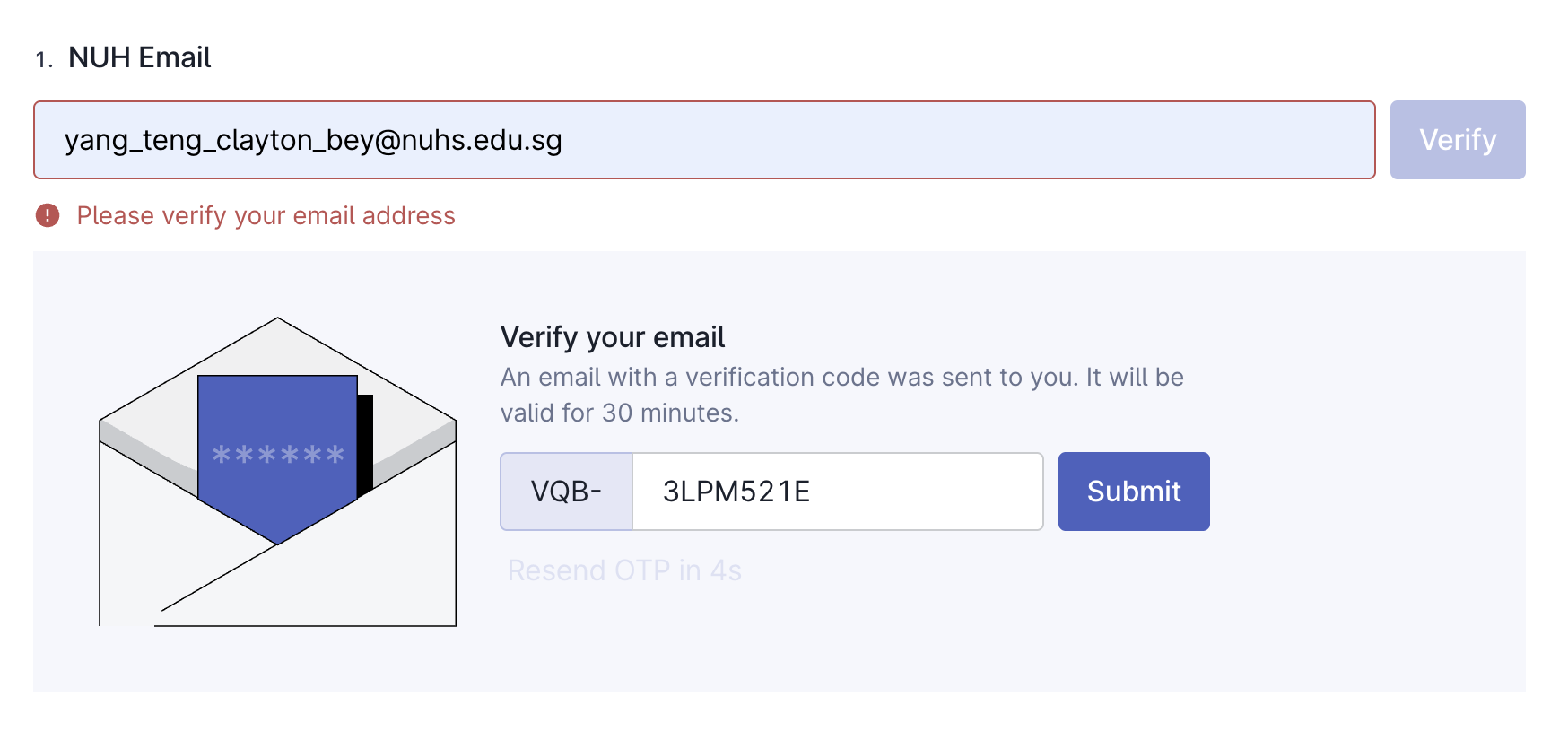
Open the ballot registration link. The first section asks you to verify your email address.
Where to enter: type your full NUH email address into the Email field.
What to click: press the Verify button.
Expected behaviour: the form advances to the OTP step. If the address is rejected, double-check for typos — the system only accepts recognised NUH email addresses.
verify-email.png
2
OTP Verification
Security check
A one-time password (OTP) is sent to the email address you entered. Complete this step promptly.
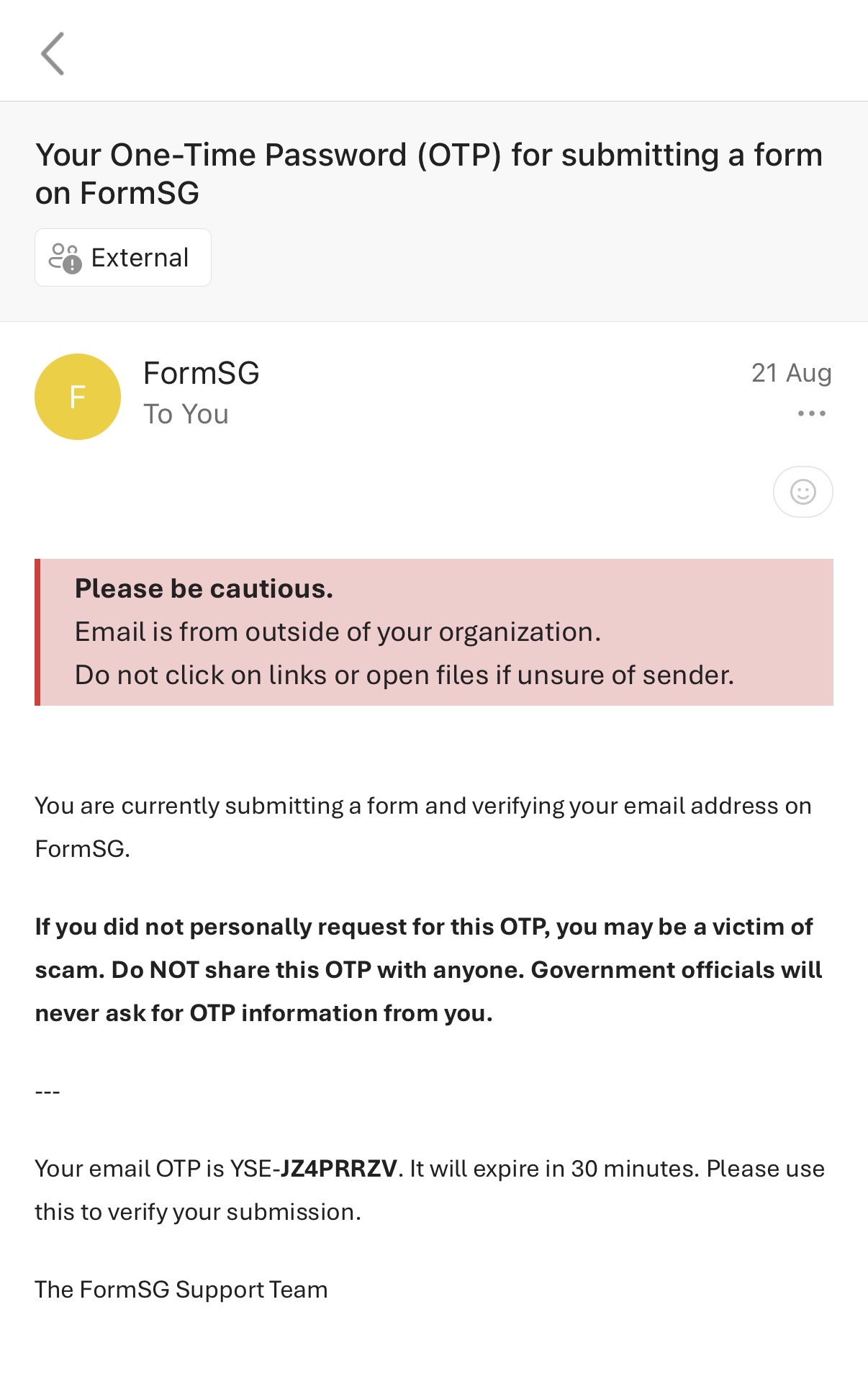
Where to find the OTP: open your email inbox and look for the verification email from FormSG.
How to enter it: type the 6-character alphanumeric code into the OTP field on the form (the code appears in bold in the email).
Time sensitivity: the OTP expires after 30 minutes. If it expires, you will need to request a new code before you can submit the form.
fill-otp.png
formsg-otp.jpg
⏰ Time limit
OTPs expire after 30 minutes. If your code no longer works, click Resend Code and use the code from the latest email.
3
Verification Confirmation
Verified
Once the OTP is accepted, the form confirms that your email has been verified.
Confirmation: you will see a green border around the email field and a green tick inside it, and the Verify button now reads Verified.
What happens next: the ballot selection sections unlock automatically — continue straight to Step 4. You will not need the OTP again in this session.
email-verified.png
4
Select P1 Ballot 1 (Month)
P1Priority 1
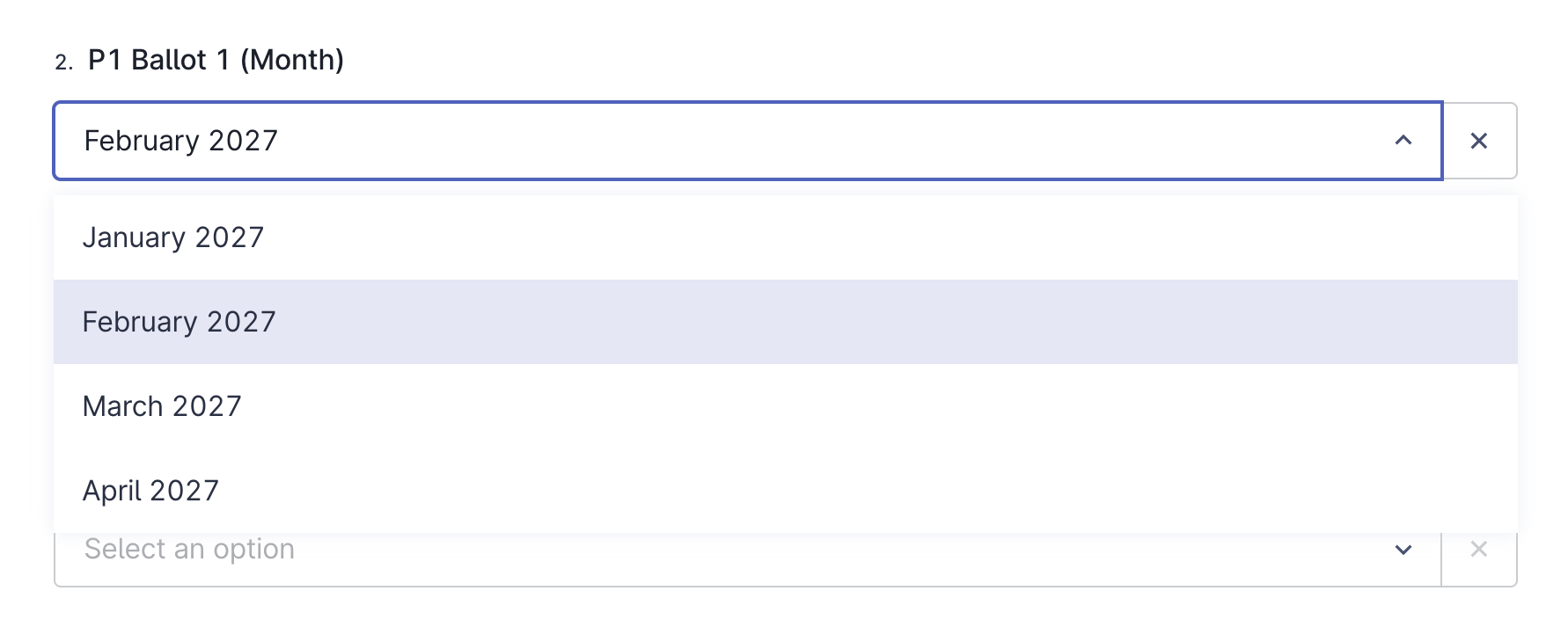
In the P1 Ballot 1 section, choose the month you most want leave in. P1 is your highest-priority request.
Navigation: scroll to the P1 Ballot 1 (Month) dropdown.
Selection options: pick one month from the list.
Confirmation: the month you pick is highlighted in the field — the week dropdown in the next step updates to match it.
select-month.png
5
Select P1 Ballot 1 (Week)
P1Priority 1
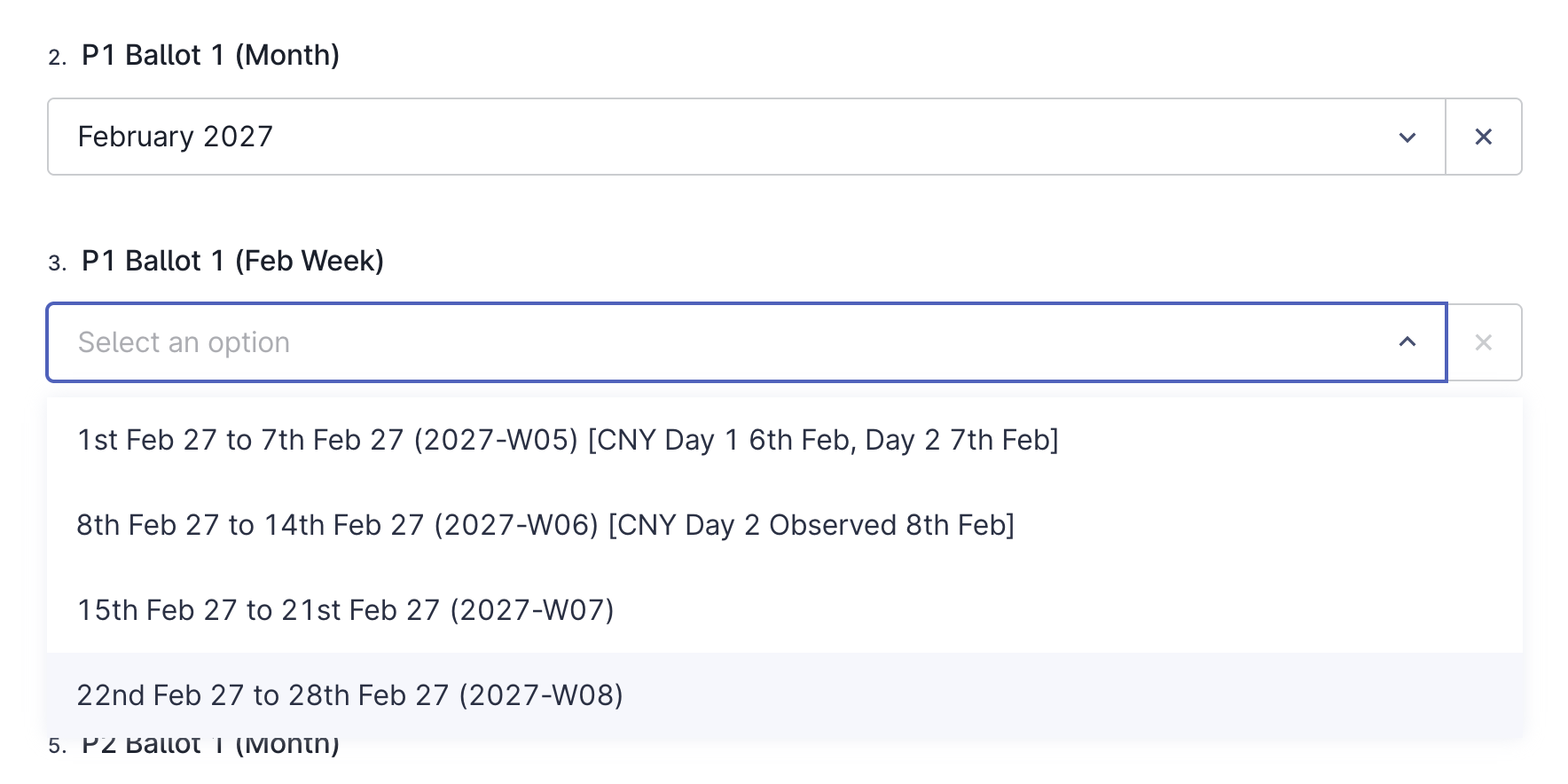
Choose the specific week within the month you selected in Step 4.
How to choose: open the P1 Ballot 1 (Week) dropdown and pick the week you want.
Relationship to the month: the week options depend on the month you chose — only weeks within that month are listed. If you change the month, re-select your week.
Tip: weeks with public holidays or school holidays tend to be oversubscribed — see the Ballot Mechanics guide for the full list.
select-week.png
6
Additional Ballot Selections
P1P2Repeat pattern
Repeat the same month-then-week pattern from Steps 4–5 for your remaining ballot entries:
P1 Ballot 2 — a second month/week at priority 1.
P2 Ballot 1 — a first month/week at priority 2 (lower priority than P1).
P2 Ballot 2 — a second month/week at priority 2.
Each section works exactly like Steps 4–5: pick the Month, then pick the Week within it. You may choose the same month in different ballots, but avoid selecting the exact same week twice — the declaration in Step 8 requires no duplicates.
ℹ️ No screenshots available
These sections follow the identical dropdown pattern shown in Steps 4–5. Simply repeat the same actions for P1 Ballot 2, P2 Ballot 1, and P2 Ballot 2.
7
Bonus Week Selection
Bonus
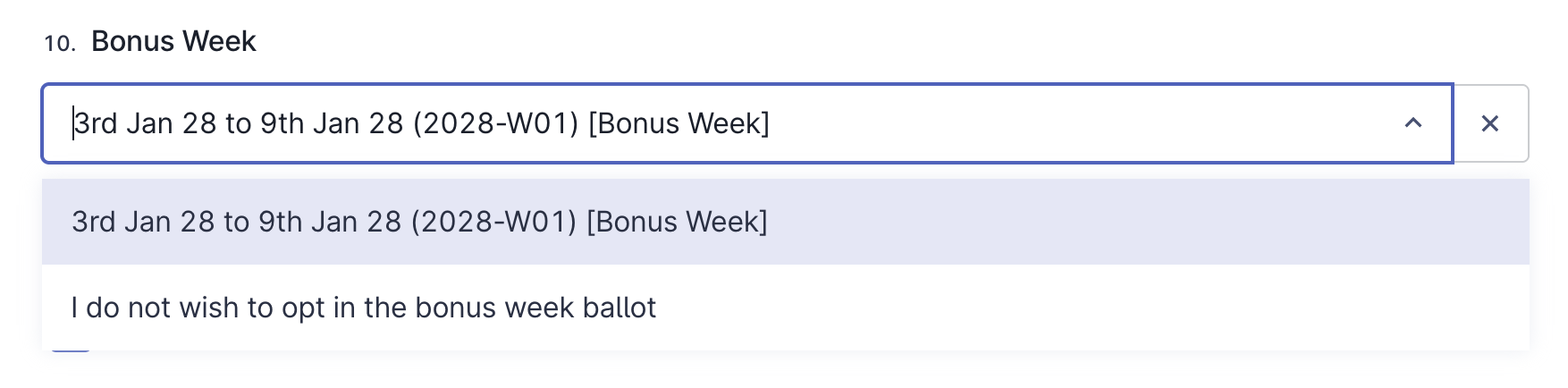
Decide whether you want to be included in the bonus week (the extra 2028-W01 ballot).
Opt in: your name enters the bonus-week draw for an additional chance to secure leave that week.
Opt out: you are not included in the bonus-week draw; your regular P1/P2 selections are unaffected.
Choose the option that matches your preference — there is no penalty for either choice.
select-bonus.png
8
Declaration & Submission
Final check
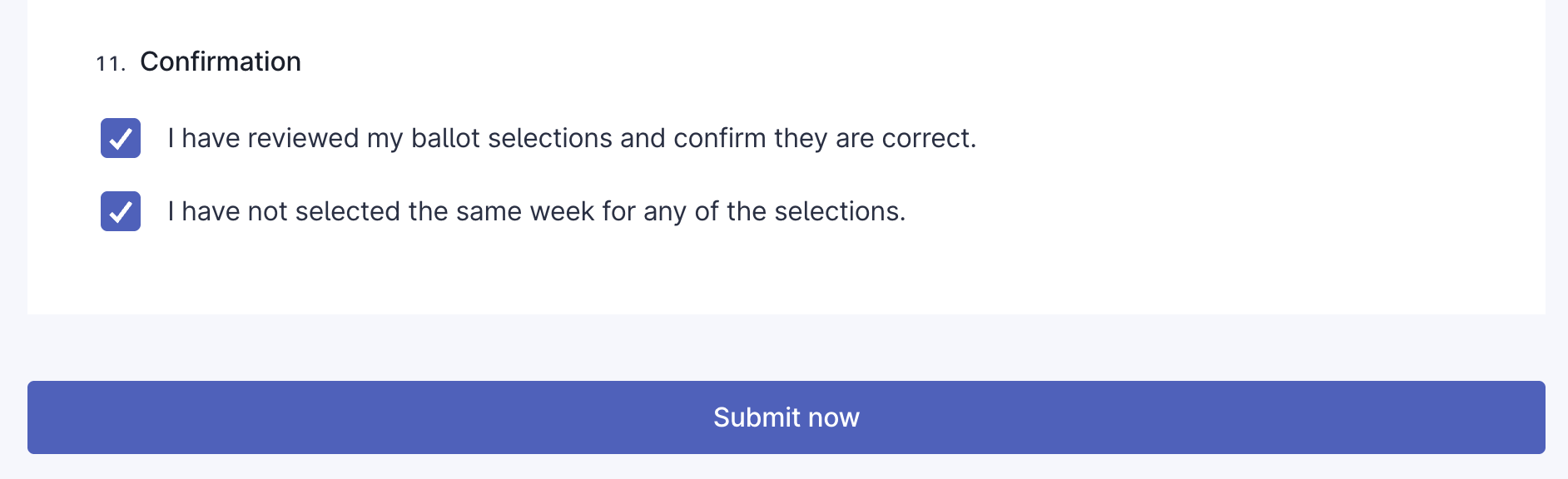
Before submitting, the form asks you to declare that your selections are correct.
Declaration text: read the statement confirming that your ballot entries are correct and contain no duplicate weeks.
Checkbox actions: tick the declaration checkbox(es) — submission stays disabled until they are checked.
Submit button: click the Submit button at the bottom of the form once everything is verified.
⚠️ After submitting
Once submitted, the only way to change your selected weeks is to submit a new form with all your choices.
declarations.png
9
Confirmation & Dashboard
Done
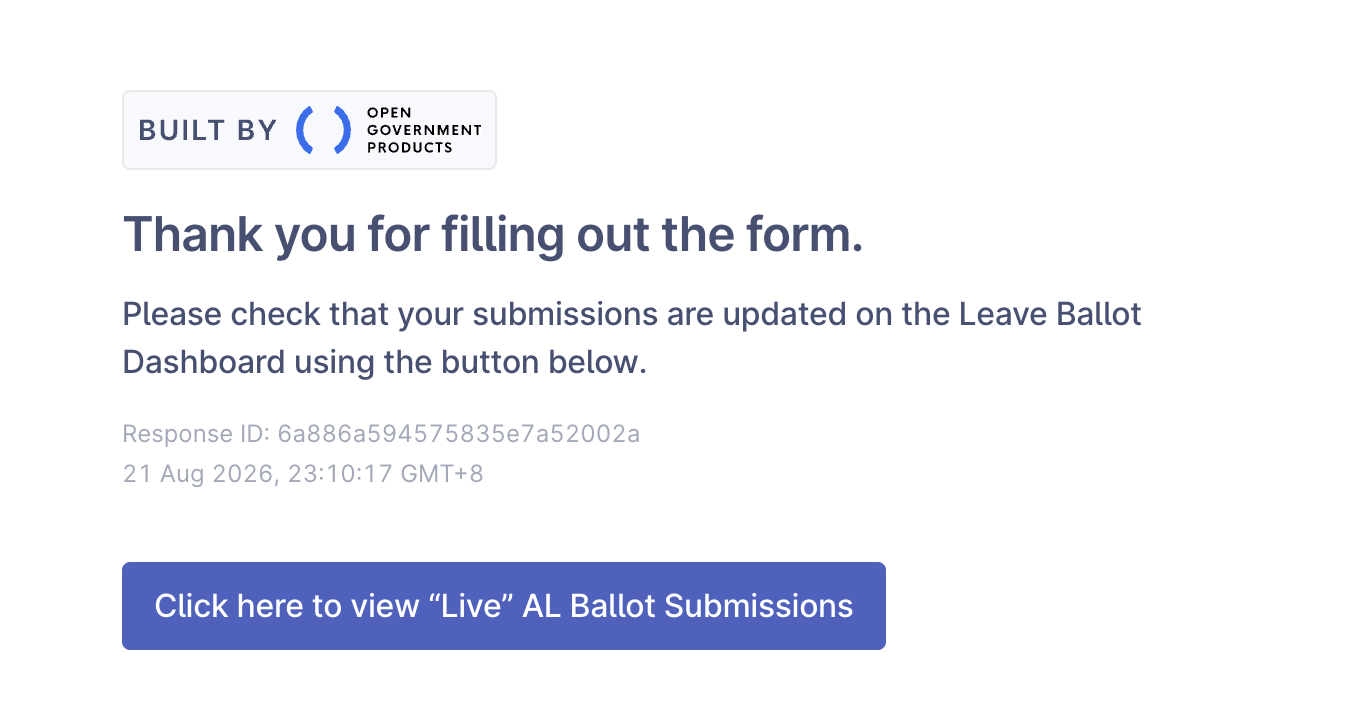
After submitting, you land on the confirmation page — you're all set.
Confirmation page: a success screen shows that your response was submitted.
Email copy: you will receive an email containing a copy of your responses — it can take a few minutes to arrive (check Spam if needed).
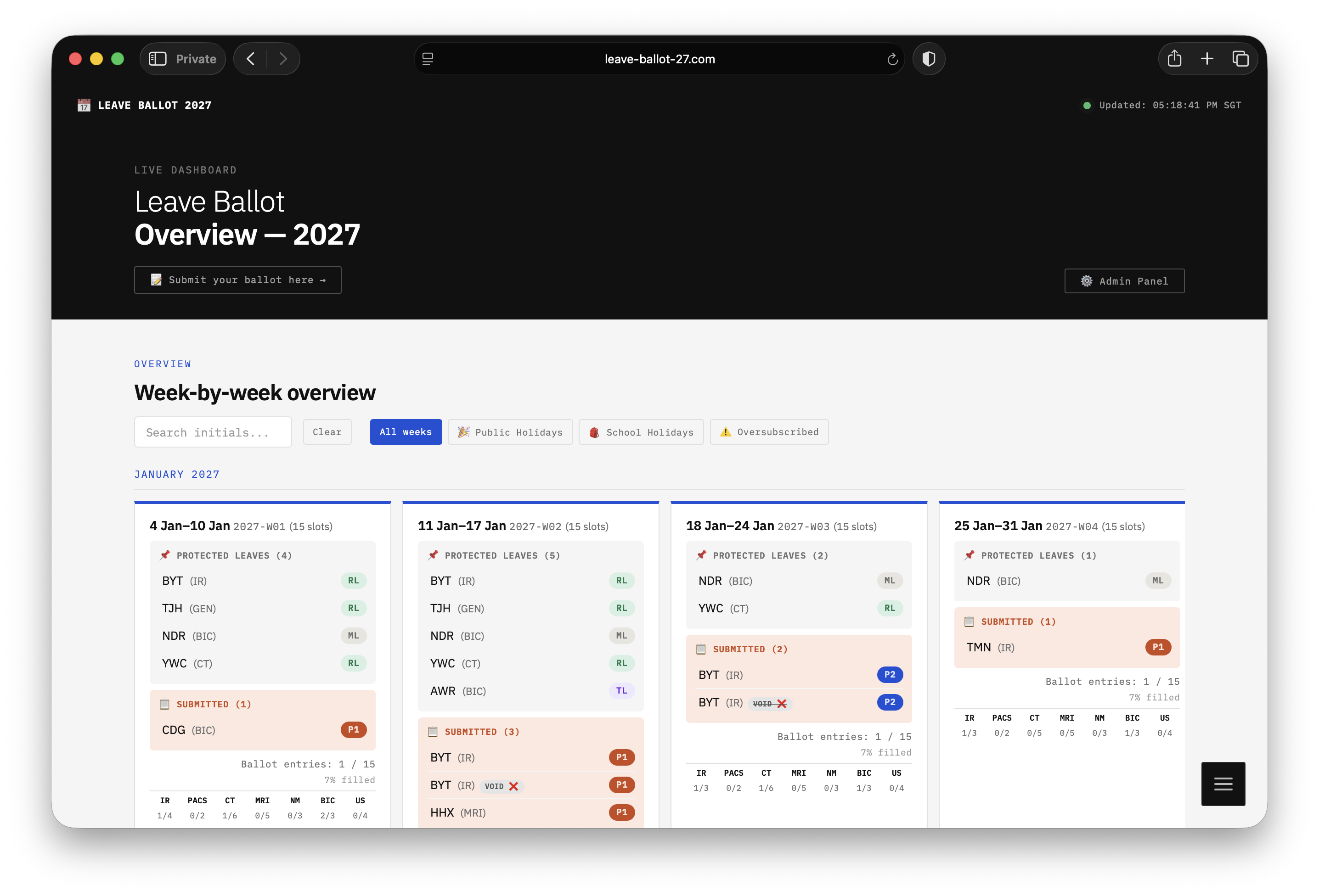
Dashboard access: click the View Live Dashboard button on the confirmation page to see the week-by-week overview with your entries (not accessible on NUH intranet).
confirmation.png
dashboard.png
Troubleshooting Tips
📧
OTP email not arriving
Wait 1–2 minutes, then check your Spam/Junk folder. Make sure you entered the exact NUH address. If it still doesn't arrive, request a new code.
⏰
OTP expired / no longer valid
OTPs are time-limited. Click Resend Code to get a fresh one and complete the verification promptly.
🚫
Email address not accepted
Check for typos and ensure it is your NUH staff address.
🔁
Form flags a duplicate week
You may have selected the same week in two ballots. Change one of the selections so each week appears only once before submitting.
🕸️
Page timed out or froze
FormSG sessions expire after inactivity. Refresh the page and restart — you may need to verify your email again. Keep the form open and complete it in one sitting.
Next Steps
✓Check the live dashboard — open the dashboard from the confirmation page and confirm your initials appear under the weeks you selected.
✓Wait for the draw — after the closing date, the ballot draw runs and allocations are decided by priority (P1 first), capacity and modality caps.
✓Watch your email — draw results and any follow-up instructions will be sent to your verified NUH address.
✓Review the Draw Log — once the draw is done, the dashboard's Draw Log shows the allocation decisions for every week.
✏️ Modify your selections
The dashboard updates with new entries from other staff in real time. If you see a week getting overcrowded and want to ballot for another week, resubmit the form again with your new choices.
🎉 You're all set
That's the entire registration flow. If anything looks wrong on the dashboard, contact BYT/CEM before the ballot closes.
How It Works
Ballot Mechanics How Leave is Allocated
A clear explanation of how the 2027 Leave Ballot system decides who gets which weeks. The actual code is also provided below for full transparency.
The Leave Ballot system allocates annual leave weeks fairly. Here's the simple version:
You submit your preferred weeks (P1 = high priority, P2 = standard priority, and optionally the Bonus Week).
The system checks how many slots are available each week (15 base slots).
The draw runs with a random seed. It allocates P1 requests first, then P2 requests.
You get your weeks if there's space and your modality hasn't reached its cap.
If you have fewer than 4 weeks, you can submit a reballot for additional weeks.
🎯 Fair and Transparent: Every draw uses a seed value, so results are reproducible and auditable. The actual code is shown below so you can verify the logic yourself.
2. Weekly Capacity: 15 Ballot Slots (20 on Leave)
Each week is staffed for a maximum of 20 staff on leave — that is the overall number of staff who can be away in a single week.
Up to 15 of those are ballot slots. Protected leave counts towards the same weekly total, so a week with a lot of protected leave has fewer ballotable slots.
📌 Important: 15 is the maximum number of ballot slots, not a guarantee. Ballotable slots for a week = 20 − staff on protected leave, capped at 15 — so it only drops below 15 once a week has more than 5 staff on protected leave.
Balloted leave — P1/P2 winners (and bonus-week opt-ins for the bonus week).
What Does NOT Reduce the Slots?
Exempted staff — their entries do not consume ballot slots; each exempted staff member adds one slot on top of the week (see Section 4).
📐 Examples:
• Week 10 has 3 staff on protected leave → 20 − 3 = 17, so the week still has the full 15 ballot slots.
• Week 22 has 8 staff on protected leave → 20 − 8 = 12 ballot slots for that week.
The number of ballot slots is set per week — the default is 15, and it is lowered for weeks where protected leave takes the week's total towards 20.
The dashboard shows this split on every week card as Total entries: X (Y protected + Z balloted) once the draw has run.
3. Modality Caps & Leave Conflicts
Two important rules control who can be on leave at the same time: Modality Caps and Leave Conflicts.
3a. Modality Caps
Each modality (department/role) has a maximum number of staff that can be on leave in a single week. This ensures no single department is understaffed.
Modality
Cap
Cap (if ≥1 on protected leave)
IR
3
4
PACS
2
3
CT
5
6
MRI
5
6
NM
3
4
BIC
2
3
US
4
5
GEN
—
—
How caps work: If your modality has a cap of 3, only 3 staff from your modality can be on leave in that week (including both ballot and protected leave).
Dynamic +1 cap: If there is at least 1 staff from a modality on protected leave (ML, MRL, PL, SPL, RL, HL, TL, ICL, CCL, FCL, AL) in a week, that modality's capacity increases by 1.
📐 Example: IR Modality
Base cap: 3
Protected leaves in Week 10: 1 IR staff on ML
Relaxed total capacity: 3 + 1 = 4
Ballot slots available: 4 - 1 = 3
📐 Result: 1 IR staff is already on ML. The remaining 3 slots can be allocated through the ballot (4 total capacity - 1 protected leave).
3b. Leave Conflicts — Department IC & 2IC
To ensure department operations continue smoothly, Department ICs (In-Charge) and 2ICs (Second In-Charge) cannot be on leave at the same time.
⛔ Rule: If an IC and their 2IC both request the same week, one of them will be skipped during the draw. The decision is based solely on randomisation — whoever gets processed first keeps the slot.
How it works in the draw:
When the draw processes entries, it checks if the staff member conflicts with anyone already allocated.
If the IC is already allocated for a week, the 2IC will be skipped for that week.
If the 2IC is allocated first, the IC will be skipped instead.
The order is determined by the random shuffle — no one has priority over the other.
Example: IR Department
Staff
Role
Week Requested
Priority
Result
CXQ
IR IC
2027-W10
P1
✅ Allocated
PTY
IR 2IC
2027-W10
P1
❌ Skipped (conflict with IC)
Common Conflict Pairs
IR IC ↔ IR 2IC — Cannot be on leave together
CT IC ↔ CT 2IC — Cannot be on leave together
MRI IC ↔ MRI 2IC — Cannot be on leave together
And other department-specific pairs
4. Exempted Staff
Some staff may be designated as Exempted — mainly those on PACS & AHA.
What This Means:
Exempted staff entries do not count toward modality caps.
Exempted staff are always allocated their requested weeks.
Exempted staff increase weekly capacity — each exempted staff member adds 1 extra slot to the week. This applies to the regular ballot weeks only: in the bonus week (2028-W01) exempted staff compete for the bonus slots like everyone else and add no extra slot.
📐 Example: Week 10 has 15 slots. 2 exempted staff ballot for this week. Effective capacity becomes 17 slots.
Exempted staff appear with a light brown background on the dashboard.
5. The Draw Process (Step by Step)
1.Submit — You submit your P1, P2, and Bonus Week preferences.→
2.Check — The system checks duplicate entries and flags them.→
3.Shuffle — Entries are shuffled randomly using a seed.→
4.Allocate P1 — P1 (high priority) entries are allocated first.→
5.Allocate P2 — P2 (standard priority) entries are allocated next, using remaining slots.→
6.Results — You can see who got which weeks on the dashboard.
Allocation Rules (In Order)
Conflict Check — If you conflict with an already-allocated staff member (like an IC/2IC pair), you are skipped.
Exempted Status — Exempted staff are always allocated.
Slot Availability — There must be a slot remaining in the week.
Modality Cap — Your modality must not have exceeded its cap.
Randomisation — Within the same priority, allocation order is random (using the seed).
🎲 Reproducible Results: The same seed always produces the same allocation, ensuring transparency.
6. The Actual Code
Below is the actual Python code that runs the draw. You can review it to verify the logic is fair and transparent.
# ============================================
# DRAW ALGORITHM
# ============================================async defrun_draw(seed: str):
random.seed(seed)
async with AsyncSessionLocal() as session:
# Clear previous draw results
await session.execute(delete(DrawResult))
ballots = (await session.execute(select(BallotEntry))).scalars().all()
protected_leaves = (await session.execute(select(ProtectedLeave))).scalars().all()
# Group protected leaves by week
other_by_week = {}
for ol in protected_leaves:
other_by_week.setdefault(ol.week_label, []).append(ol)
# Skip duplicate entries
valid_ballots = []
for b in ballots:
if b.duplicate_flag:
continue# Skip duplicates
valid_ballots.append(b)
# Group ballots by week
ballot_by_week = {}
for b in valid_ballots:
ballot_by_week.setdefault(b.week_label, {"high": [], "low": [], "bonus": []})
ballot_by_week[b.week_label][b.priority].append(b)
# Load exempted staff
exempted_ids = get_exempted_ids()
# Load leave conflicts (IC/2IC pairs)
conflicts = get_conflicts()
conflict_set = build_conflict_set(conflicts)
# Count protected leaves by modality per week
protected_leave_counts_by_week = {}
for ol in protected_leaves:
if ol.modality:
protected_leave_counts_by_week.setdefault(ol.week_label, {})
protected_leave_counts_by_week[ol.week_label].setdefault(ol.modality, 0)
protected_leave_counts_by_week[ol.week_label][ol.modality] += 1
for week in REGULAR_WEEKS:
# 1. Calculate available slots
base_slots = get_week_slots(week) # Default: 15# Count exempted staff for this week
week_ballots = ballot_by_week.get(week, {"high": [], "low": [], "bonus": []})
all_entries = week_ballots["high"] + week_ballots["low"] + week_ballots["bonus"]
exempted_count = sum(1 for b in all_entries if b.employee_id in exempted_ids)
# Effective slots = base + exempted
effective_slots = base_slots + exempted_count
# 2. Calculate modality caps (with relaxation)
effective_caps = {}
for mod, base_cap in MODALITY_CAPS.items():
protected_count = protected_leave_counts_by_week.get(week, {}).get(mod, 0)
if protected_count > 0:
# Relax: total capacity = base_cap + 1
total_cap = base_cap + 1
# Ballot slots = total_cap - protected_leaves
ballot_cap = max(0, total_cap - protected_count)
else:
ballot_cap = base_cap
effective_caps[mod] = ballot_cap
# 3. Process P1 entries (high priority)
p1_entries = ballot_by_week.get(week, {}).get("high", [])
random.shuffle(p1_entries)
slots_remaining = effective_slots
modality_counts = {m: 0 for m in effective_caps}
winners = []
for entry in p1_entries:
mod = get_modality(entry.employee_id)
cap = effective_caps.get(mod, 0)
is_exempted = entry.employee_id in exempted_ids
# Check for conflicts (IC/2IC cannot be on leave together)ifhas_conflict(entry, winners, conflict_set):
continue# Conflict with already-allocated staffif is_exempted:
winners.append(entry) # Always allocate exemptedelif slots_remaining > 0 and modality_counts[mod] < cap:
winners.append(entry)
modality_counts[mod] += 1
slots_remaining -= 1
else:
pass# Skipped# 4. Process P2 entries (standard priority)
p2_entries = ballot_by_week.get(week, {}).get("low", [])
random.shuffle(p2_entries)
for entry in p2_entries:
mod = get_modality(entry.employee_id)
cap = effective_caps.get(mod, 0)
is_exempted = entry.employee_id in exempted_ids
# Check for conflicts (IC/2IC cannot be on leave together)ifhas_conflict(entry, winners, conflict_set):
continue# Conflict with already-allocated staffif is_exempted:
winners.append(entry) # Always allocate exemptedelif slots_remaining > 0 and modality_counts[mod] < cap:
winners.append(entry)
modality_counts[mod] += 1
slots_remaining -= 1
else:
pass# Skipped# 5. Save winners to databasefor w in winners:
session.add(DrawResult(employee_id=w.employee_id, week_label=week))
# Bonus week processing — same logic as regular weeks, EXCEPT the
# exempted benefit does not apply: exempted staff compete for
# bonus slots like everyone else.
bonus_entries = ballot_by_week.get(BONUS_WEEK, {}).get("bonus", [])
random.shuffle(bonus_entries)
slots_remaining = bonus_slots
modality_counts = {m: 0 for m in effective_caps}
bonus_winners = []
for entry in bonus_entries:
mod = get_modality(entry.employee_id)
cap = effective_caps.get(mod, 0)
# Check for conflicts (IC/2IC cannot be on leave together)ifhas_conflict(entry, bonus_winners, conflict_set):
continue# Conflict with already-allocated staff# Bonus week: exempted staff are NOT auto-allocated — they
# compete for bonus slots like everyone else (the exempted
# benefit applies to the regular ballot weeks only).if slots_remaining > 0 and modality_counts[mod] < cap:
bonus_winners.append(entry)
modality_counts[mod] += 1
slots_remaining -= 1
else:
pass# Skipped# Save bonus winnersfor w in bonus_winners:
session.add(DrawResult(employee_id=w.employee_id, week_label=BONUS_WEEK))
await session.commit()
🔍 Key Things to Note in the Code:
Only ignored duplicates are skipped — cross-duplicate P2 entries; P1/P2 duplicates are deduped and still enter the draw.
Exempted staff are always allocated — they bypass caps and add capacity.
Conflicts are checked — IC and 2IC cannot be on leave together.
Randomisation uses a seed — results are reproducible.
P1 entries are processed before P2 — higher priority requests go first.
Modality caps are checked — no single department gets overloaded.
Protected leaves relax caps by +1 — but they also consume modality capacity.
7. Reballot
If you receive fewer than 4 weeks of leave in the first draw, you can submit a reballot.
1.Identify — The system finds staff with <4 weeks allocated.→
2.Generate Links — You receive a unique, secure link via email.→
3.Submit — You select your preferred additional weeks.→
4.Second Draw — A second draw runs to allocate remaining slots.
🔗 Secure Links: Each reballot link is unique and secure, verifying your identity and the number of weeks you're owed.
8. Duplicate Entries
The system detects and handles duplicate entries:
⚠️ Duplicate Types
P1 Duplicate
You selected the same week multiple times in P1. The dashboard shows each entry you submitted — the duplicate occurrence is marked VOID ❌. Only one entry enters the draw.
P2 Duplicate
You selected the same week multiple times in P2. The dashboard shows each entry you submitted — the duplicate occurrence is marked VOID ❌. Only one entry enters the draw.
Cross Duplicate
You selected the same week in both P1 and P2. The dashboard shows both entries: the P1 entry is valid (no tag) and enters the draw; the P2 entry is markedVOID ❌ and is excluded.
⚠️ Important: Every submitted entry is captured on the dashboard — duplicates are not hidden. The entry that actually counts is the one without the VOID ❌ badge; the flagged duplicate is excluded from the draw. For a cross duplicate, the P1 entry wins the week and the P2 entry is shown as VOID ❌.
User Guide
Dashboard Guide Using the Leave Ballot Dashboard
Everything you need to know to understand your leave ballot dashboard.
The dashboard shows all weeks of the year, organized by month. Each week is displayed as a card that shows who has submitted, who has been allocated, and how many slots remain.
📆 What You'll See — Scroll to explore
February 2027
1–7 Feb 2027-W05
🧧 Chinese New Year
📌 Protected Leaves (2)
BYT (IR)RL
TJH (MRI)TL
📋 Submitted (9)
GMT (CT)P1
EAG (US)P1
CSE (MRI)P2
DRD (NM)P2
CCC (GEN)P2
ZYC (IR)P2
YHY (IR)P1
FZS (MRI)P1
GQY (CT)P1
Ballot entries: 9
IR
PACS
CT
MRI
NM
BIC
US
3/4
0/2
2/5
3/6
1/3
0/2
1/4
📌 Pre-Draw: Entries show as "Submitted". BYT is exempted (always allocated, adds a slot). Baby blue marks future-modality staff (GEN → a future modality in 2027): EAG (US), CSE (MRI), TJH (MRI).
1–7 Feb 2027-W05(9 slots)
🧧 Chinese New Year
📌 Protected Leaves (2)
BYT (IR)RL
TJH (MRI)TL
✅ Allocated (8)
GMT (CT)P1
EAG (US)P1
YHY (IR)P1
FZS (MRI)P1
GQY (CT)P1
CSE (MRI)P2
DRD (NM)P2
CCC (GEN)P2
❌ Unallocated (1)
ZYC (IR)P2
🔄 Round 2 (1)
CKM (MRI)Round 2
Remaining slots: 1 / 9
IR
PACS
CT
MRI
NM
BIC
US
3/2
0/0
2/3
3/4
1/1
0/0
1/2
📌 Post-Draw (oversubscribed): With the base cap cut to 9 and each modality cap reduced by 2, 8 of 9 requests were allocated. ZYC missed out because the IR cap was reached, and CKM reballoted for the 1 remaining slot.
3–9 Jan 2028 2028-W01
⭐ BONUS
📌 Protected Leaves (2)
BYT (IR)RL
TJH (MRI)TL
📋 Bonus Opt-ins (9)
GMT (CT)Bonus
EAG (US)Bonus
CSE (MRI)Bonus
DRD (NM)Bonus
CCC (GEN)Bonus
ZYC (IR)Bonus
YHY (IR)Bonus
FZS (MRI)Bonus
GQY (CT)Bonus
Ballot entries: 9
IR
PACS
CT
MRI
NM
BIC
US
3/2
0/0
2/3
3/4
1/1
0/0
1/2
📌 Bonus Week: An extra 2028-W01 week with reduced caps. There are no P1/P2 priorities — every opt-in is treated equally as a "Bonus" entry.
← Scroll left/right to see all examples →
Key Things to Know
A quick legend for reading the mock cards above:
📌 Key things to know:
Month headers — weeks are grouped by month for easy navigation.
Week cards — each card shows one week's complete data.
Holiday badges — public holidays and school holidays are clearly marked.
Clickable week titles — click any week's title to jump straight to that week in the Draw Log.
Future modalities — GEN staff moving into a modality in 2027 are highlighted baby blue and shown with their future modality (e.g. EAG (US)). During the draw they take up the future modality's cap.
Capacity not shown — each week has a set capacity for ballot leave, but the exact number is intentionally hidden as it may be adjusted before the draw. Only the number of entries is shown.
Colored sections — each box is colour-coded: green Allocated, orange Submitted/Unallocated, yellow Reballot, grey Protected Leaves.
Name highlights — a staff name's background marks their status: light brown = exempted staff, baby blue = future-modality staff.
"Submitted" vs "Allocated" — before the draw, entries show as Submitted. After the draw, successful entries become Allocated, and unsuccessful ones become Unallocated.
Oversubscribed weeks — when more staff request a week than there is capacity, the draw randomly selects who gets the slots. The entry counter turns red to alert you.
How the Slot Counter Works
Each card shows a slot counter — Ballot entries: X before the draw and Remaining slots: X / Y after it. The weekly capacity is intentionally not shown before the draw, as it may be adjusted then — once the draw has run, the final capacity is shown.
📊 The counter states:
Pre-draw — "Ballot entries: X" shows how many staff have submitted for that week (e.g. "Ballot entries: 9").
Post-draw — "Remaining slots: X / Y" counts only balloted allocations: protected leaves are tracked separately (they relax modality caps but never take a ballot slot) and pending reballot bids are demand, not consumption — so the count shows the slots still free, including those available for round 2.
Total — "Total entries: X (Y protected + Z balloted)" sits under the counter and shows everyone away that week: the protected leaves plus the staff who won a ballot slot (X = Y + Z).
Oversubscribed — when more staff request a week than there is capacity, the counter turns red.
Exempted staff — exempted staff are included in the entry count but not called out separately.
How the Modality Counter Works
Each week card includes a modality counter — a small grid showing, for every modality, how many staff are using it versus that modality's capacity for the week:
📊 Modality Counter Example — 1–7 Jan (2027-W01)
IR
PACS
CT
MRI
NM
BIC
US
0/3
0/2
2/5
4/6
0/3
0/2
0/4
How to read it:
Number on the left — how many staff are using that modality for this week (ballot requests + protected leaves).
Number on the right — that modality's capacity for the week.
Dynamic relaxation: When a staff member is on protected leave in a modality that week, that modality's capacity increases by 1 — e.g., MRI shows 4/6 because 4 MRI staff requested and an MRI protected leave raised the cap from 5 to 6.
Oversubscribed: When usage reaches or exceeds capacity, the counter turns orange.
The modality counter appears both before and after the draw — it always reflects demand (who requested) versus capacity.
📌 Tip: Use the search bar above the dashboard to filter weeks by staff initials, the filter chips (All weeks · 🎉 Public Holidays · 🎒 School Holidays · ⚠️ Oversubscribed) to narrow the week view, and the month dropdown (All months → January…December, or Bonus week) to jump straight to one month. These combine, so you can e.g. pick June and ⚠️ Oversubscribed to see only June's over-requested weeks.
2. Exempted Staff
Some staff may appear with a light brown background around their name. These are exempted staff.
What This Means for You:
Exempted staff are always allocated their requested weeks.
They do not count toward modality caps.
They increase weekly capacity — each exempted staff member adds 1 extra slot to the week (regular weeks only: in the bonus week exempted staff compete like everyone else and add no extra slot).
📐 Example: A week has 15 slots. If 2 exempted staff request that week, effective capacity becomes 17 slots.
3. Analytics
The Analytics section shows key metrics about submissions and draw results:
Submission Rate — how many staff have submitted their ballot.
P1 / P2 Requests — how many P1 and P2 requests were made, and how many were allocated (with allocation rates).
Bonus Opt-ins — how many staff chose the bonus week.
Top 5 Popular Weeks — the most requested weeks, shown by date range (hover the range to see the week code, e.g. "2027-W05").
📊 Allocation Stats (after the draw) — how many staff ended up with 0, 1, 2, 3, 4 (or more) balloted weeks, as a count and as a percentage of non-exempted staff.
Oversubscribed Weeks — weeks where more staff requested than slots available.
🚧 Rejected — Modality Cap (after the draw) — how many entries were turned away because their modality's quota for that week was already full, and across how many weeks.
🚧 Rejected — Week Full (after the draw) — how many entries were turned away because the week's ballot slots were all taken, and across how many weeks.
🚧 Why entries were rejected (after the draw) — the full breakdown by reason (modality cap, week capacity, leave conflict, already allocated, other), with entries and weeks per reason and a 1st-round / 2nd-round split.
🔎 Individual Analysis — type your initials to see your own weeks: before the draw, the odds for each week you balloted for (based on that week's slots and your modality's quota); after the draw, whether you got each week and — if not — why.
🔁 1st / 2nd ballot toggle: the cards switch between the first ballot (submission rate, P1/P2 requests and allocations, allocation distribution, rejection stats) and the second ballot — the reballot, which has no P1/P2 priority: one pool of requests drawn against the capacity round 1 left in each week. The second-ballot view shows how many staff were owed a reballot, how many actually submitted, how many requests were granted, how many staff reached the 4-week target after round 2, the round-2 rejection reasons, its most requested weeks and its over-subscribed weeks. The toggle only appears once second-ballot data exists, and never on the public submissions page.
🔎 Individual Analysis is split by round: after entering initials you get 1st ballot — your weeks and a separate 2nd ballot — your reballot weeks block. The reballot block shows your requested weeks with the round-2 odds (calculated from the capacity and quota left after round 1) or, once the second draw has run, whether each was granted and why not. If you did not need or submit a reballot, the block says so.
📱 On a phone: the analytics cards scroll sideways in two rows, and each wide table (individual analysis, top weeks, rejection breakdown, distributions) has its own horizontal scroll so dates and headers stay readable instead of being squeezed.
🔒 Who sees what: the public final list of submissions page (/?view=submissions) shows only the pre-draw analytics — submission rate, P1/P2 and bonus counts, top 5 popular weeks and oversubscribed weeks. Draw-derived figures (allocations, allocation distribution, rejection stats) are admin-only, and the Individual Analysis always requires the admin password.
🔎 Reading Individual Analysis: Odds are an estimate — the draw shuffles every entry, so an entry competing with N others for S slots wins with probability ≈ S/N, and the tighter of the week's slots and your modality's cap applies. P1 is drawn before P2, so a P2 entry's odds account for what P1 takes first. After the draw, the result column shows just ✅ or ❌ — click the week range (e.g. "1 Feb–7 Feb ↗") to jump to that week in the Draw Log, where the exact decision and reason are recorded.
📊 Reading Allocation Stats: A row like "4 weeks — 3 staff — 30%" means 3 of the non-exempted staff (30%) received exactly 4 balloted weeks. The bonus week and protected leaves are excluded from the calculation, and exempted staff are not counted at all.
4. Draw Log
The Draw Log shows exactly how the algorithm processed each week. You can see the original entries, the shuffled order, and the decision for each entry.
Typing in the search box filters the log to the weeks and entries that match, and every match is highlighted in blue where it appears (the highlight is colour-only, so no rows or spacing move). Clicking a week range in the Individual Analysis opens that week here and also highlights that person's initials throughout the log, so you can follow their decision at a glance.
📋 Example Draw Log Entry — 2027-W05 (from the mock cards above)
1–7 Feb 2027 (2027-W05) – 9 allocated, 0 remaining▼
Original list — entries as submitted, before any processing.
Shuffled list — the random order used for allocation (using the seed).
Decision for each entry — ALLOCATED or SKIPPED with the reason.
Reason for skipping — cap reached, slots full, or conflict with another staff member.
Modality counters — shows how many staff from each modality have been allocated (e.g., "CT 1/4").
Bonus entries — shown if there are any bonus week opt-ins.
🔍 Search: Use the search bar in the Draw Log section to find specific staff members across all weeks, and the Expand all / Collapse all buttons to reveal or hide every decision at once. Type initials to filter to only the weeks containing that staff member.
📊 What to look for:
ALLOCATED — this staff member got the week.
SKIPPED — this staff member did not get the week. The reason is shown in brackets.
Modality counters — e.g., "CT 1/4" means 1 of 4 CT slots used.
Conflict skips — "conflict with IC" means the staff member was skipped because they conflict with an already-allocated staff member.
Collapsed by default — each week starts collapsed; click a header (▶/▼) to expand it, or use the Expand all / Collapse all buttons.
5. Missing Leaves
This section shows staff who have fewer than 4 weeks of allocated leave. The department target is 4 weeks.
The Weeks Not Allocated column lists the weeks each person missed as date ranges (e.g., 6–12 Feb) rather than week codes — hover a range to see its week code. A range with an asterisk (*) means that week's submission was flagged as a duplicate and excluded from the draw.
📌 Note: If you're on this list, you'll be eligible for the reballot process to request additional weeks.
6. FAQ
How often does the dashboard refresh?
The dashboard checks for updates every 15 seconds while the tab is visible and focused — it pauses when you switch away, to save resources. The "Updated" time in the top bar shows when data was last refreshed.
What does the ☰ button do?
The floating ☰ button opens a menu with quick links to the Dashboard, Analytics, Draw Log and Missing Leaves sections, plus this guide.